
Twice a year, a small piece of operations folklore turns real: something that worked all year goes wrong for one night. An invoice reminder is sent twice. A nightly report does not arrive. A "daily" job runs at a strange hour. An SLA timer is off by sixty minutes. Nobody changed anything, but the clock did.
In the United States, daylight saving time ends at 2:00 a.m. local time on the first Sunday of November. In 2026 that is Sunday, November 1. This guide explains what actually happens to scheduled automations when the clock changes, which kinds of jobs are at risk, and how to protect them with a practical checklist. Much of it can be done today.
A note on scope: schedulers behave differently, and products change. The details below come from the sources listed at the end. Treat them as a starting point, and test your own tools rather than assuming.
What actually happens to the clock
NIST describes the rule this way: daylight saving time begins on the second Sunday in March and ends on the first Sunday in November. The change happens at 2:00 a.m. local time. In the fall, "at 2 a.m. the local time becomes 1 a.m. and that hour is repeated." In the spring, the time skips ahead from 2 a.m. to 3 a.m. NIST gives the 2026 dates as March 8 and November 1. It also notes that daylight saving time is not observed in Hawaii, American Samoa, Guam, Puerto Rico, the Virgin Islands and the state of Arizona, with the exception of the Navajo Nation, which does observe it.
| Change | What the clock does | What it means for a schedule |
|---|---|---|
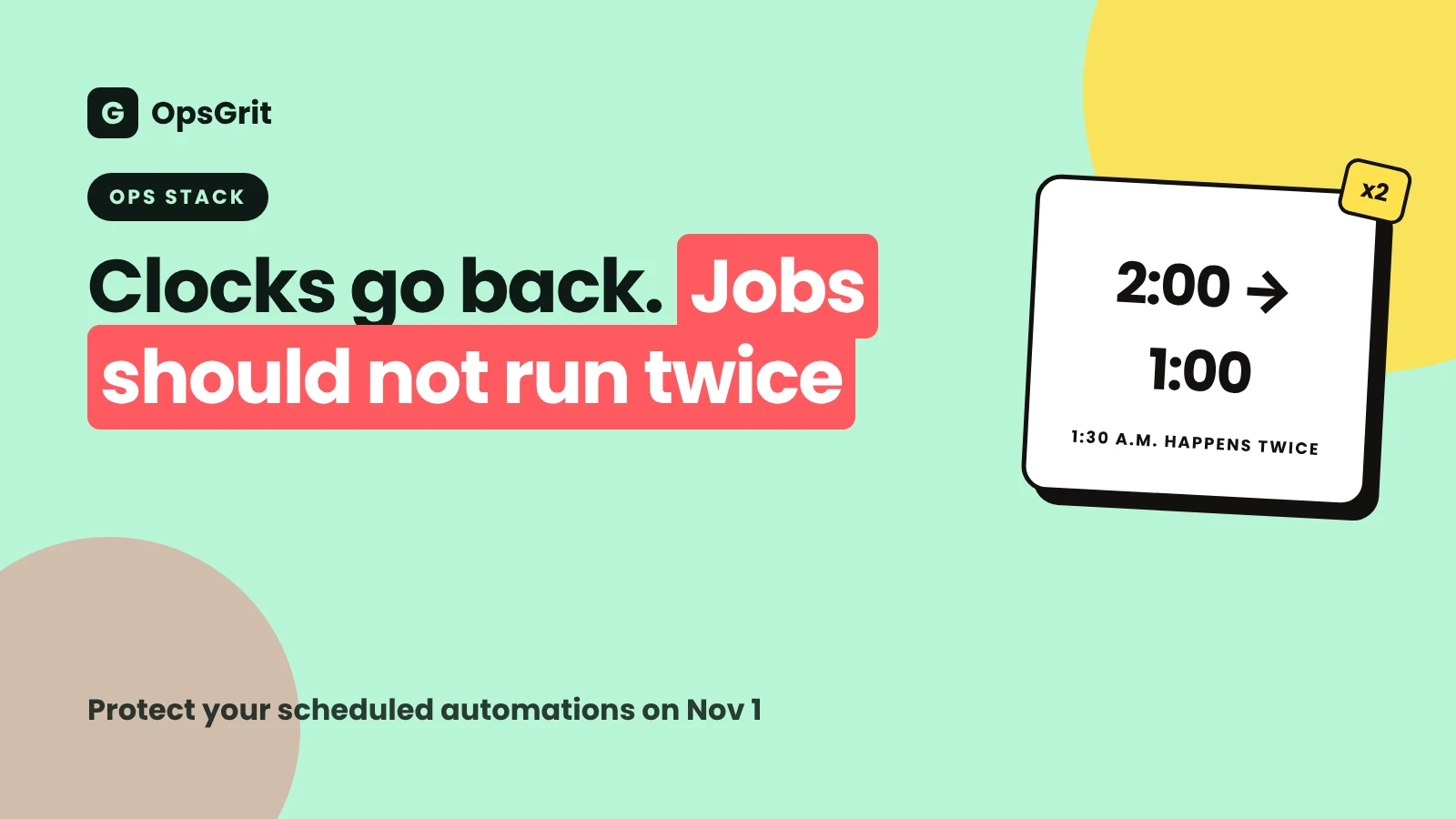
| Fall (clocks go back) | 1:00 to 2:00 a.m. happens twice | A time such as 1:30 a.m. occurs two times in the same night |
| Spring (clocks go forward) | 2:00 to 3:00 a.m. does not exist | A time such as 2:30 a.m. never occurs that night |
Two ordinary words hide the problem: "every day at 1:30 a.m." On one night each fall, that phrase is ambiguous, and on one night each spring, it is impossible. The scheduler has to pick an interpretation, and different schedulers pick different ones.
Which automations are at risk
Not every automation is affected. Look first at anything that:
- Runs on a schedule rather than in response to an event.
- Is scheduled between about midnight and 3:00 a.m. local time.
- Runs every hour or on a repeating interval.
- Sends something to a person or system that should only receive it once.
- Depends on "today" or "yesterday" in local time, such as daily totals, cutoffs and reports.
- Measures elapsed time, such as SLA timers, reminders and escalations.
| Type of job | What can go wrong in the fall | What can go wrong in the spring |
|---|---|---|
| Nightly batch (sync, backup, report) | Runs twice or not at all, depending on the scheduler | Runs late, or in a different order |
| Hourly job | May run twice in the repeated hour | May skip the missing hour |
| Reminder or notification | Sent twice | Sent late |
| Daily cutoff (orders, approvals) | Window is an hour longer, so cutoffs shift | Window is an hour shorter |
| SLA or escalation timer | Elapsed time looks an hour longer or shorter | The same, in reverse |
| Reports by "yesterday's" date | Duplicate or overlapping timestamps | Missing hour in the data |
What cron does
Many scheduled jobs run on cron or something that copies its syntax. The Linux manual page for cron describes special handling for local time changes of less than three hours, such as those caused by daylight saving time. It applies to jobs that run at a specific time and jobs that run with a granularity greater than one hour. The page says that if time was adjusted forward, jobs that would have run in the skipped interval will be run immediately, and if time was adjusted backward, running the same job twice is avoided. Jobs that run more frequently are scheduled normally. Changes of more than three hours are treated as corrections to the clock or timezone and the new time is used immediately.
That sounds simple, but the details matter. In experiments with Debian cron, the author of the Healthchecks.io blog found that when clocks went back, a job such as 30 * * * * (every hour at minute 30) ran twice around the change, because it kept its regular hourly rhythm, while a fixed-time job such as 30 1 * * * ran once. When clocks went forward, the hourly job skipped the missing time and the fixed-time job ran late. The blog is a third-party source based on one setup and notes that other implementations may behave differently, and its advice is to use UTC on servers. The takeaway for operations teams: you cannot assume what your scheduler does. Find out, or avoid the question.
What no-code and workflow tools do
Workflow platforms usually run schedules in a timezone setting that you may not have looked at. For example, the n8n documentation for its Schedule Trigger says the node uses the workflow's timezone if one is set, and otherwise the instance timezone. For self-hosted instances the default is America/New York, and on n8n Cloud the instance timezone is detected from the owner's sign-up location, with GMT as the fallback. The page does not discuss daylight saving time at all.
That is a good example of what to watch for. Documentation often tells you which timezone is used, and says nothing about edge cases. The safe approach for any tool is:
- Find out which timezone each schedule uses.
- Write it down next to the job.
- Test behavior around the change, or avoid scheduling in the risky window.
Our guide to Zapier, Make and n8n compares how the three platforms differ on other operational points. For the wider picture of how systems trigger each other, see webhooks, APIs and iPaaS.
A checklist to run before November 1
Most of this can be done in an hour or two for a small team.
1. List every scheduled automation
Make a simple table with one row per job.
| Job | Tool | Schedule | Timezone setting | Owner | Risk |
|---|---|---|---|---|---|
| Nightly sales report | Workflow tool | 1:30 a.m. daily | Account timezone | Finance ops | High |
| Invoice reminder | Workflow tool | 9:00 a.m. weekdays | Account timezone | AP lead | Low |
| Database backup | Server | Hourly, minute 30 | Server timezone | IT | Medium |
If you do not have an inventory, the stack audit and automation audit guides show how to build one. The stack audit tool can also help you list what you run.
Free tool
Stack auditList the tools your operations team depends on, spot overlap and find the automations nobody owns.
2. Mark the risky ones
Flag any job that runs between about 12:30 and 3:30 a.m. local time, any hourly or interval job, and any job whose output must not be duplicated.
3. Choose a fix for each risky job
| Fix | When to use it |
|---|---|
| Move it out of the window | The exact time does not matter. Schedule it for 4:00 a.m. instead of 1:30 a.m. |
| Switch the schedule to UTC | Technical jobs on servers where local time is irrelevant |
| Make it idempotent | Any job where a duplicate would cause harm |
| Pause it for the night | A job that is not needed on the change night |
| Add a check | Alert if the job did not run, or ran twice |
4. Make duplicates harmless
A job is idempotent when running it twice has the same effect as running it once. For many operations tasks, this is the best protection, because it works even if the scheduler surprises you.
- Give every action a unique key, such as the invoice number plus the reminder type plus the date.
- Before sending or creating something, check whether that key was already used.
- For payment and similar APIs, use the idempotency features the service provides. Stripe's documentation on idempotent requests explains the idea and how keys are used.
- Record a "last successful run" and refuse to repeat the same period.
This also helps with retries and failures. The guide to webhook failures shows why duplicates happen even without a time change.
5. Add alerts for missing and double runs
Add two simple checks to each important job: one that alerts if the job did not report in by its expected time, and one that alerts if it reported twice within a short window. Monitoring and alerting for automations explains how to choose alerts people will not ignore, and the alert review cadence keeps them useful.
6. Warn the people who depend on them
Tell the teams who use the reports, reminders or timers that something may arrive twice or an hour late on the change night, and who to contact. If you handle a change freeze around busy periods, note the time change in the same calendar.
A worked example (illustrative)
Imagine a small finance team with a workflow that runs at 1:30 a.m. every day. It collects overdue invoices and sends a reminder email to each customer. On the fall change night, the clock reaches 1:30 a.m. twice. Depending on the scheduler, the workflow runs once or twice. If it runs twice, customers receive two reminders.
The team fixes it in three steps. First, they move the schedule to 4:00 a.m., which is outside the repeated hour. Second, they add a rule: before sending, check a log of reminders sent today, keyed by invoice number and date, and skip any that already exist. Third, they add an alert that fires if more than one run is logged in a single day. The example is invented to show the method. Your own jobs, tools and risks will differ.
Building new automations the safe way
The change this weekend is a good moment to adopt a few habits that make every future change harmless.
- Store and pass timestamps in UTC, and convert to local time only for display. Include the offset or timezone name when you send a time to another system.
- Store the timezone name, not just an offset, when a schedule must follow a place's local rules.
- Avoid doing arithmetic on local times. Adding 24 hours is not the same as adding one calendar day around a change.
- Use ranges that do not rely on a single instant. For "yesterday's data," filter by start and end timestamps in UTC rather than by a local date string.
- Test with dates around the change. Run your logic with timestamps in the repeated and skipped hours.
- Document the schedule and timezone in the SOP for each automation. See SOP examples for the level of detail to aim for.
If you work across regions
Not everyone changes on the same day. As NIST notes, several US places do not observe daylight saving time at all, and other countries use different rules and dates. If your customers, suppliers or team span regions, create a short table of change dates for each location you serve, and check that your schedules and cutoffs make sense in each one. A one-week gap between regions can create odd overlaps in handoffs and meetings.
What to check after the change
Do a quick review on Sunday evening or Monday morning:
- Duplicates. Were any emails, reminders, invoices or tickets created twice?
- Gaps. Did every scheduled job report in? Are there missing records for the repeated hour?
- Reports. Do daily totals match the source systems?
- Timers. Do SLA clocks and escalations show the right elapsed time?
- Logs. Are entries from the repeated hour distinguishable? If not, note it for next time.
- Customer and staff messages. Did anyone report something odd?
Write down what you found and what you changed, while it is fresh. The next change is on the second Sunday of March, which is March 14, 2027, and a short note now saves a scramble then.
Common mistakes
- Assuming the tool handles it. Documentation often does not mention daylight saving time. Test or avoid the window.
- Not knowing which timezone a schedule uses. Check the account, workflow and server settings separately.
- Scheduling important jobs at 1:30 or 2:30 a.m. Move them to a safer time when the exact time does not matter.
- Treating duplicates as unlikely. Build jobs so a second run is harmless.
- No alert for missing runs. Silent failures are the most expensive kind.
- Using local time in data. Timestamps in UTC are easier to compare and audit.
- Forgetting people. Tell the teams who depend on the output.
- Skipping the review. A five-minute check on Monday catches the problem before it grows.
Key takeaways
- In the US, daylight saving time ends at 2:00 a.m. on the first Sunday of November (November 1 in 2026). The clock goes back to 1:00 a.m. and that hour repeats.
- Scheduled jobs between about 12:30 and 3:30 a.m., hourly jobs and anything that must not be duplicated are the ones at risk.
- Schedulers differ. Cron has specific rules for time changes under three hours, other tools may say nothing, so test instead of assuming.
- Protect jobs by moving them out of the window, using UTC where local time is irrelevant, making them idempotent and alerting on missing or double runs.
- Tell the people who depend on the output, and review results the next morning.
- Adopt UTC timestamps and tested schedules as a standing habit, and note the next change date: March 14, 2027.
Sources and further reading
The pages below are where we checked the facts in this guide. Scheduler behavior and product documentation change, so confirm on the source and test in your own environment. Written by Sam at OpsGrit with AI assistance and an automated editorial review. If you spot something wrong, tell us.
- NIST: Daylight Saving Time rules. Start and end rules, the 2026 dates, the 2 a.m. change and places that do not observe daylight saving time.
- Linux manual page: cron(8). How cron handles local time changes of less than three hours.
- Healthchecks.io: How Debian cron handles DST transitions. A third-party experiment with Debian cron. Other implementations may differ.
- n8n docs: Schedule Trigger. Which timezone the trigger uses.
- Stripe docs: Idempotent requests. A clear explanation of idempotency keys.
The checklist, example and habits in this guide are OpsGrit's own and are starting points. Adapt them to your tools and risks.